What you need
The connection uses SoftOne's Web Services (s1services). Four details are needed. The rest are optional, and SoftOne usually returns them itself on the first successful sign-in.
| Detail | Required? | Where from |
|---|---|---|
| S1 address (the s1services API URL) | Yes | From the installation's serial number |
| App ID | Yes | From your SoftOne partner; it isn't shown in Soft1 |
| Username | Yes | A Soft1 user with Web Services access |
| Password | Yes | That user's password |
| Company (COMPANY) | Optional | The company code |
| Branch (BRANCH) | Optional | The branch code |
| Module (MODULE) and user number (REFID) | Optional | MODULE is almost always 0; the sign-in returns the REFID |
The «Web Services Connector» licence (970) is required. Without it no connection works, whatever details you enter. You’ll check it further down.
Where to find each detail in Soft1
Everything is inside your business's Soft1. It's best to sign in with a user that has administrator rights.
 (opens in a new tab)
S1 address, from the serial number
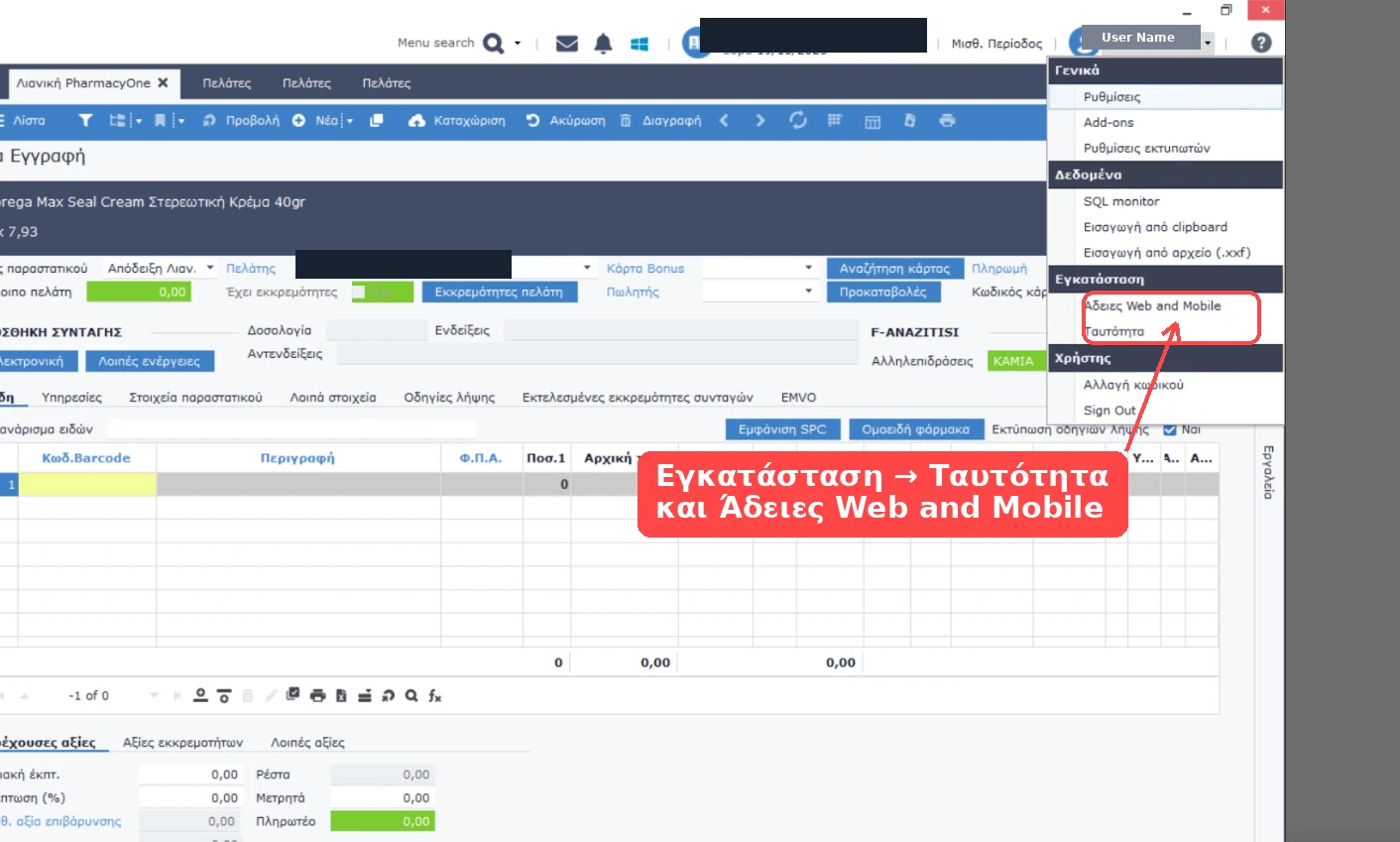
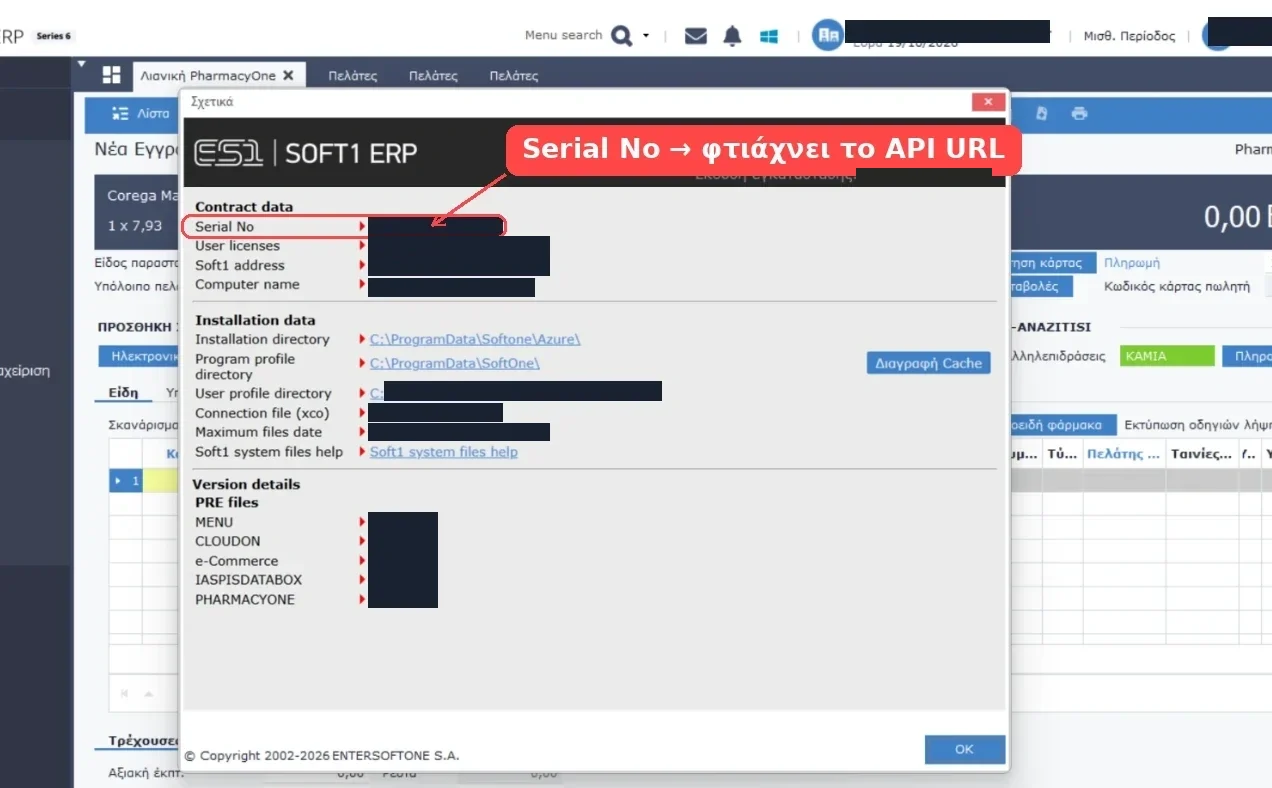
Open «?» at the top right, then «Ταυτότητα» (Identity). The About window shows the Serial No. The address is built like this:
https://<SERIAL>.oncloud.gr/s1servicesIn the S1 address (from your technician) field you can enter the whole address or just the serial number. The form then builds the address for you.
 (opens in a new tab)
If the installation is Soft1 Cloud (the «Installation directory» looks like …\Softone\Azure\), the oncloud.gr pattern applies. If SoftOne runs on your own server, the address is different and your SoftOne partner gives it to you.
Web Services licence (970)
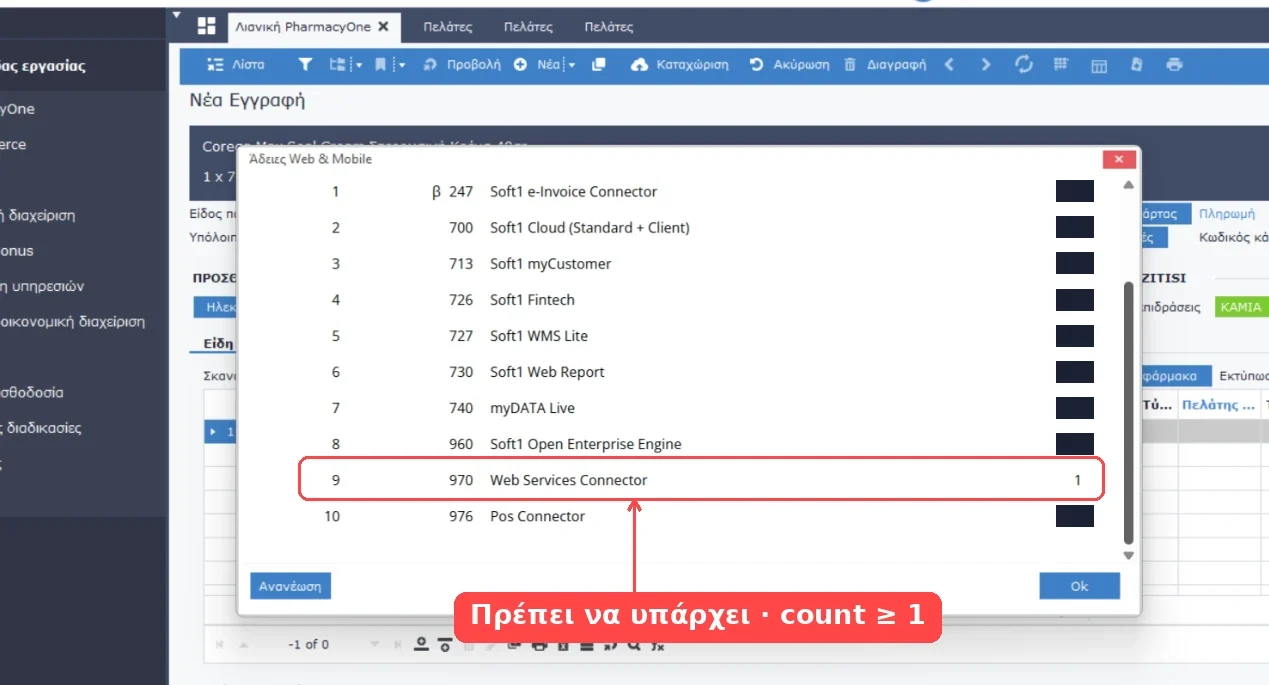
In the same menu: «Εγκατάσταση» → «Άδειες Web and Mobile». The list must include the line 970 · Web Services Connector with a count of 1 or more. If it's missing, the first thing to ask your partner is to switch it on.
The numbers in the Code column are not App IDs. 970, 960 and the rest are licence codes. Don't enter them in the App ID field.
 (opens in a new tab)
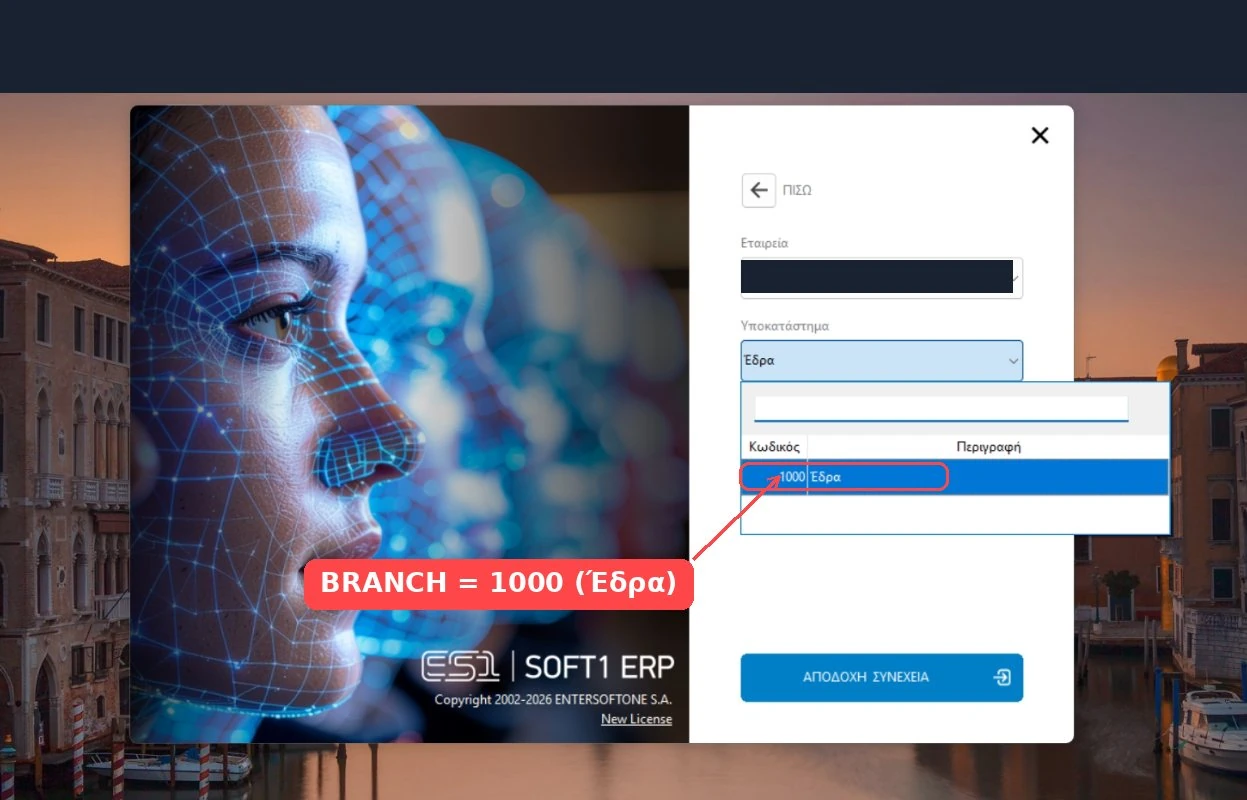
Company (COMPANY) and branch (BRANCH)
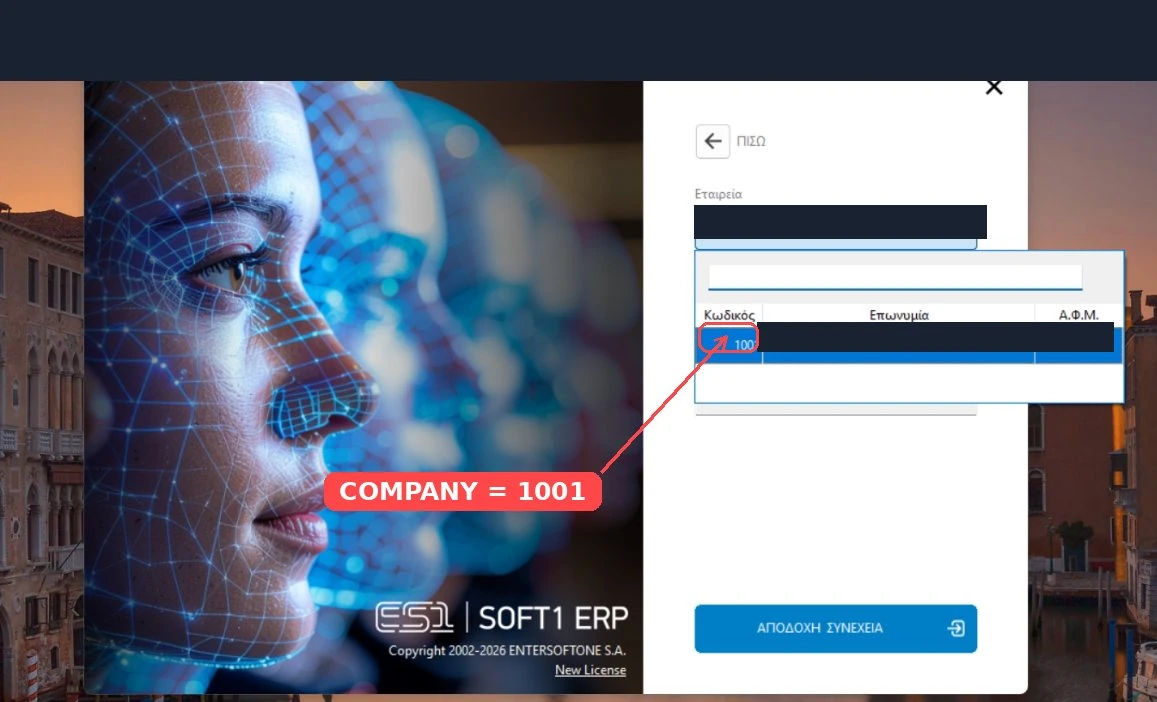
They appear on Soft1's sign-in screen, where you choose the company and branch, or in the company and branch settings. Note the code, not the name.
 (opens in a new tab)
 (opens in a new tab)
A user for the connection
Ideally a separate user just for Advisable AI, not someone's personal user. In Soft1's «Menu search», type «Χρήστες» (Users) and press Enter (administrator rights are needed). On the user's card:
- Keep the exact login name. That's what goes in the Username field, not an email or a full name.
- Check that Web Services access is switched on.
- The user's code (ID) is the REFID.
- Give it only the rights it needs: usually read access to items, customers and sales documents.
Can't see «Χρήστες» (Users)? If it doesn't appear even for an administrator, your SoftOne partner sets up the user and their Web Services access.
The licence alone is not enough. Licence 970 being on the installation doesn't mean this particular user can sign in through Web Services. Access must be switched on for the user you enter in the form. A user can sign in to Soft1 normally and still be refused by Web Services. This is the most common cause of “Login fails due to invalid login credentials”.
Filling in the connection form
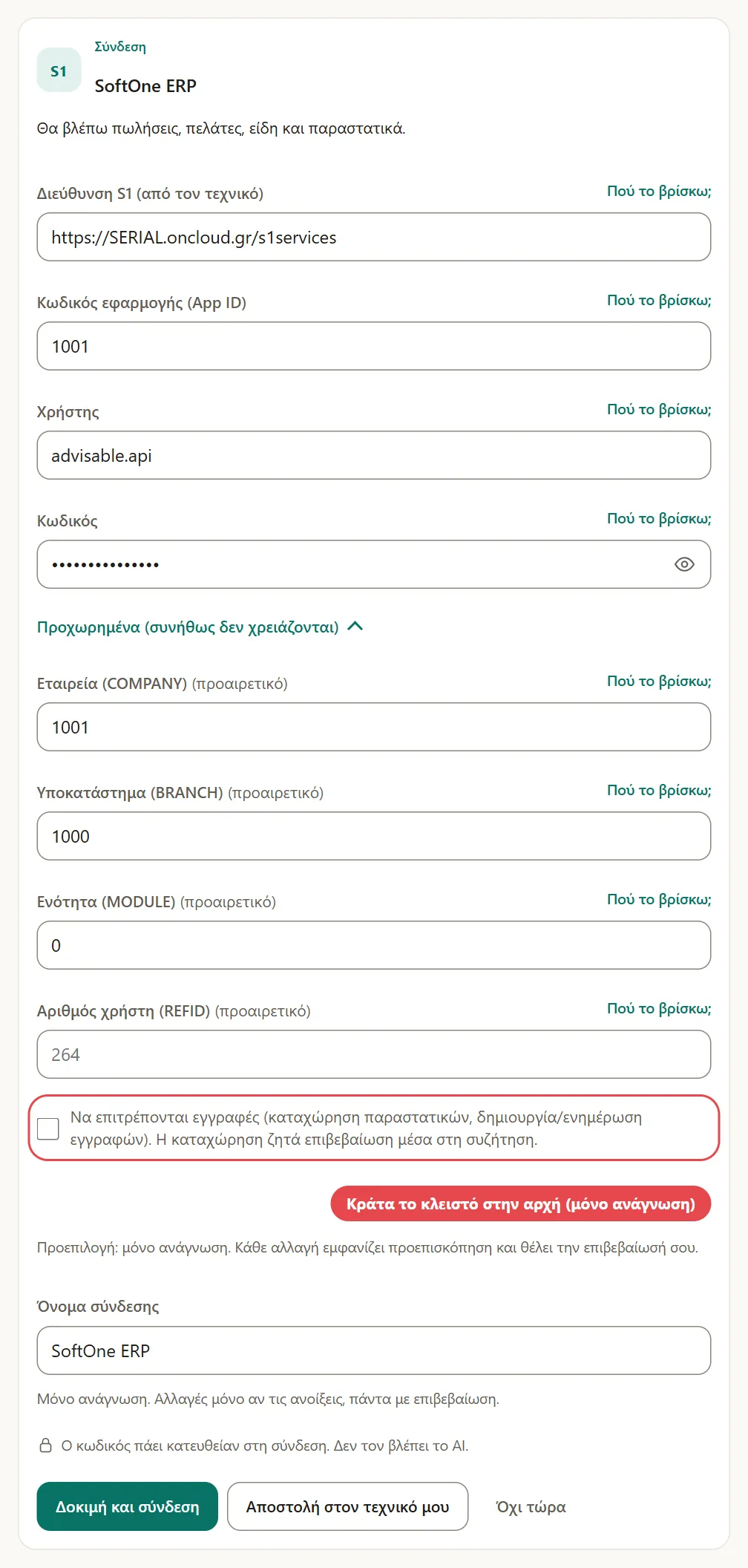
In the chat, press Connect on the SoftOne card. If there's no card, press "+" → Connections → Connect a system → SoftOne ERP. The optional fields open from Advanced.
| Field | What to enter |
|---|---|
| S1 address (from your technician) | https://<SERIAL>.oncloud.gr/s1services, or just the serial number |
| App ID | The one your partner gives you. For a test it is often 1001. |
| Username and Password | The user for the connection and its password |
| Company (COMPANY) and Branch (BRANCH) | Their codes, or leave them empty |
| Module (MODULE) | 0; it is already filled in |
| User number (REFID) | Empty; the sign-in returns it |
| Allow writes (…) | Off at first: start read-only |
| Connection name | A name you'll recognise, e.g. “SoftOne main”. If you don’t change it, it stays “SoftOne ERP”. |
Keep Allow writes off until you need it. This is your live ERP, with documents and customer details. Even when it's on, every change shows a preview first and needs your confirmation.
 (opens in a new tab)
Press Test and connect. If it passes, you're done. If not, the card shows what SoftOne answered. Send it to my technician emails the steps to your technician, without passwords. They can run the PowerShell test for a clearer message.
For technicians: test with PowerShell
This test runs the sign-in directly, without the form, and gives a clearer error. Open PowerShell, not cmd (if you're in cmd, type powershell and press Enter). Put your own details in place of <SERIAL> and USERNAME. You type the password in the window that opens, so it doesn’t stay in the PowerShell history.
$c = (Get-Credential -UserName "USERNAME" -Message "Soft1").GetNetworkCredential()
$body = @{service="login";username=$c.UserName;password=$c.Password;appId="1001"} | ConvertTo-Json
Invoke-RestMethod -Uri "https://<SERIAL>.oncloud.gr/s1services" -Method Post -Body $body -ContentType "application/json; charset=utf-8" | ConvertTo-Json -Depth 5
It worked if you see "success": true and the objs list with COMPANY, BRANCH, MODULE and REFID. Those are ready for the form.
Try the username in upper and lower case
If you're not sure whether the username is in upper or lower case, try all three forms at once. Put your own name, in each form, in place of User, user and USER. You type the password in the window that opens, as before.
$p = (Get-Credential -UserName "User" -Message "Soft1").GetNetworkCredential().Password
foreach ($u in "User","user","USER") {
  $body = @{service="login";username=$u;password=$p;appId="1001"} | ConvertTo-Json
  $r = Invoke-RestMethod -Uri "https://<SERIAL>.oncloud.gr/s1services" -Method Post -Body $body -ContentType "application/json; charset=utf-8"
  "$u -> success=$($r.success) $($r.error)"
}
Check that the address answers
Only needed if you suspect a network problem. Normally only port 443 answers.
Test-NetConnection "<SERIAL>.oncloud.gr" -Port 443If 443 is open and the sign-in returns a SoftOne message, the network is fine. The problem is in the sign-in details or the App ID, not a port. Don't scan every port of a cloud server: it looks like an attack and your IP address may get blocked.
If something fails
“Login fails due to invalid login credentials” (errorcode -1)
The server hears you but refuses the sign-in. The causes, most likely first:
- Wrong username format. You sign in to Soft1 with an email or a cloud account, but Web Services want the internal login name. Passwords are case-sensitive; watch out for the Greek keyboard too.
- The user has no Web Services access. They sign in to Soft1 but not through Web Services. Your partner or administrator switches it on.
- Wrong App ID. Some installations give the same general message. Your partner gives you the right App ID.
- Licence 970 is already taken, e.g. by the online shop. A second licence or shared use may be needed.
“$body is not recognized…”
You're running the test in cmd instead of PowerShell. Type powershell, press Enter and run it again.
“Timeout”, “could not resolve host” or 404
The address or the serial number is wrong. Check the serial number and ask your partner for the exact address.
What to ask your SoftOne partner
If the connection fails while the user signs in to Soft1 normally, the issue is on the server side. Send your partner the message below, with the serial number and the username in place of <SERIAL> and <USERNAME>.
For serial number <SERIAL> (Soft1 Cloud): signing in at https://<SERIAL>.oncloud.gr/s1services returns errorcode -1 "Login fails due to invalid login credentials", while the user signs in to Soft1 normally. We need:

1) The App ID for the Web Services Connector (licence 970).
2) Web Services access switched on for this specific user, "<USERNAME>". The licence being on the installation is not enough: the user needs the right to sign in through Web Services.

Ideally, a new, separate user for this connection, with read rights on items, customers and sales documents.
Security
- Always HTTPS (port 443). Never test a sign-in over
http://, because the password would travel unencrypted. - A separate user for the connection, with a strong password. Not someone's personal user: otherwise actions are logged in their name and it takes up a user licence.
- Only the rights it needs. Start read-only; turn on writes only when you need them.
- Don't put passwords in messages, chats or shared files. Keep them in a password manager. In the form, the password goes straight to the connection, is stored encrypted and the AI never sees it.
A filled-in example
An anonymous example, from a Soft1 Cloud installation, to show what the details look like once you've collected them. The values are only examples: you enter your own.
| Detail | Example value |
|---|---|
| Serial No | <SERIAL> |
| Product | Soft1 Cloud ERP · Series 6 |
| Company (COMPANY) | 1001 |
| Branch (BRANCH) | 1000 (head office) |
| Module (MODULE) | 0 |
| Web Services licence | 970 · Web Services Connector: present |
| S1 address | https://<SERIAL>.oncloud.gr/s1services |
A common case: the address answers and port 443 is open, but the sign-in is refused with “invalid login credentials” whatever username or App ID variant you try. Then the next step is your partner's: the App ID and the user's Web Services access (see what to ask).